
Transferring DNA Test Results to Living DNA
If you have been tested at Ancestry.com, MyHeritage, 23andMe, or FamilyTreeDNA, you should consider transferring your results to Living DNA, another DNA testing company.
What you get with a free Living DNA test changes from time to time and may include access to your genetic matches—exposure to another group of people who have had their DNA tested—and/or an ethnicity report, which claims to be the most detailed ancestral geographic origins reports available for the British Isles.

1. Go to Living DNA’s website and log in or sign up for an account.
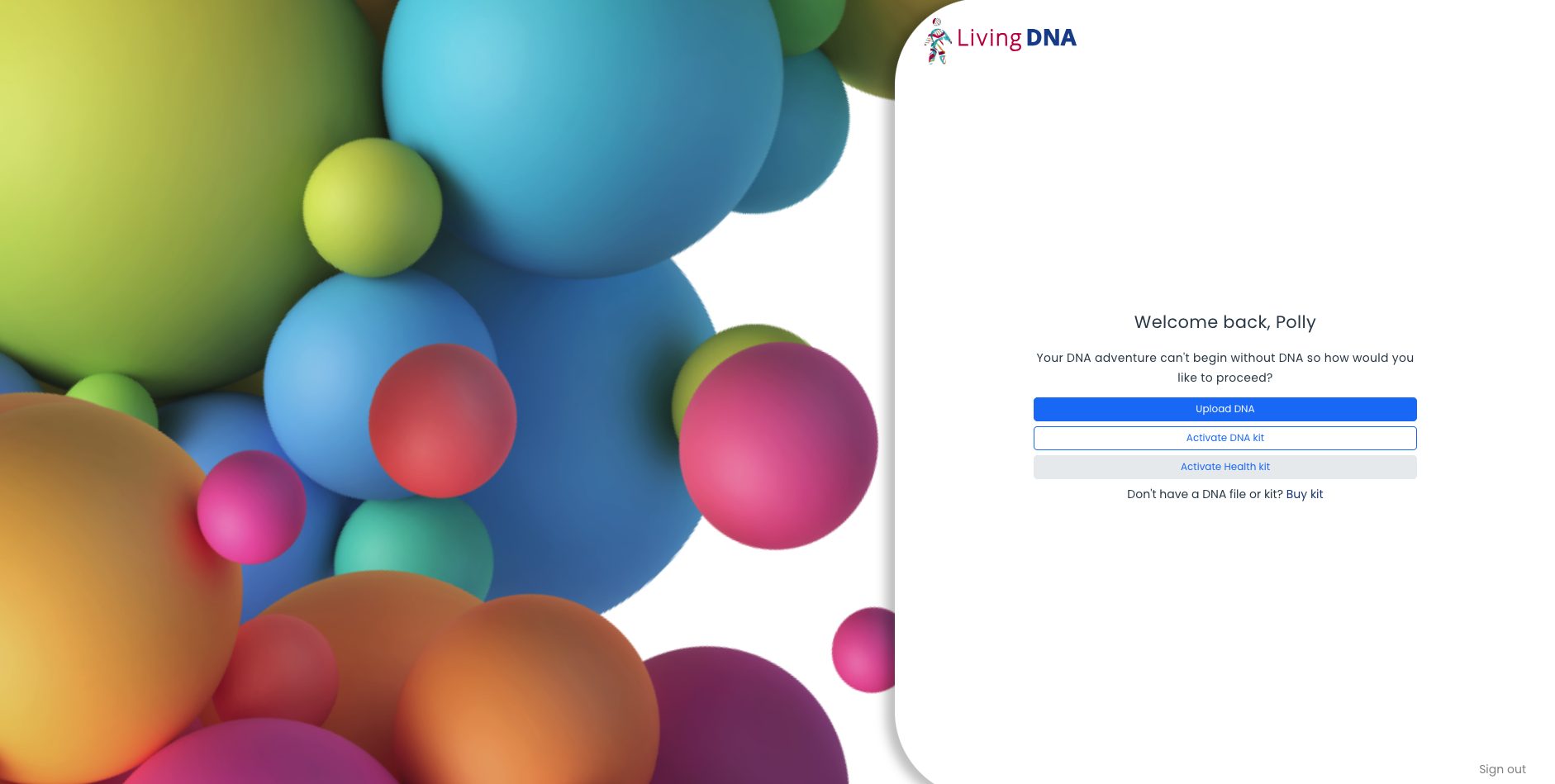
2. If you just created an account, select “Upload DNA.”
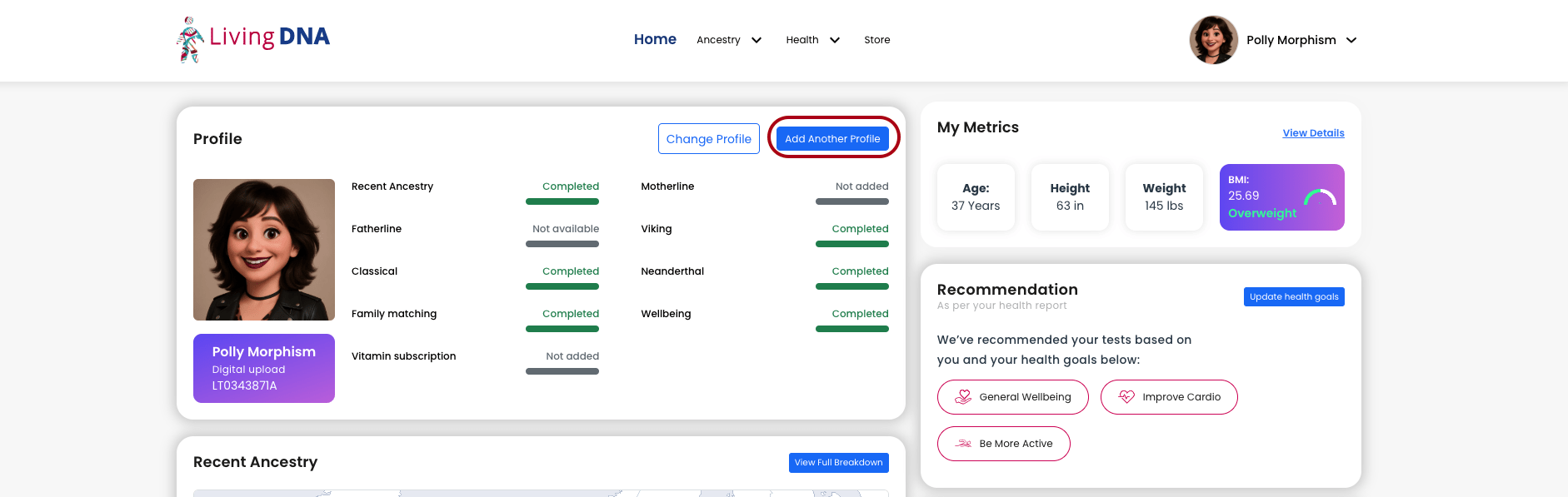
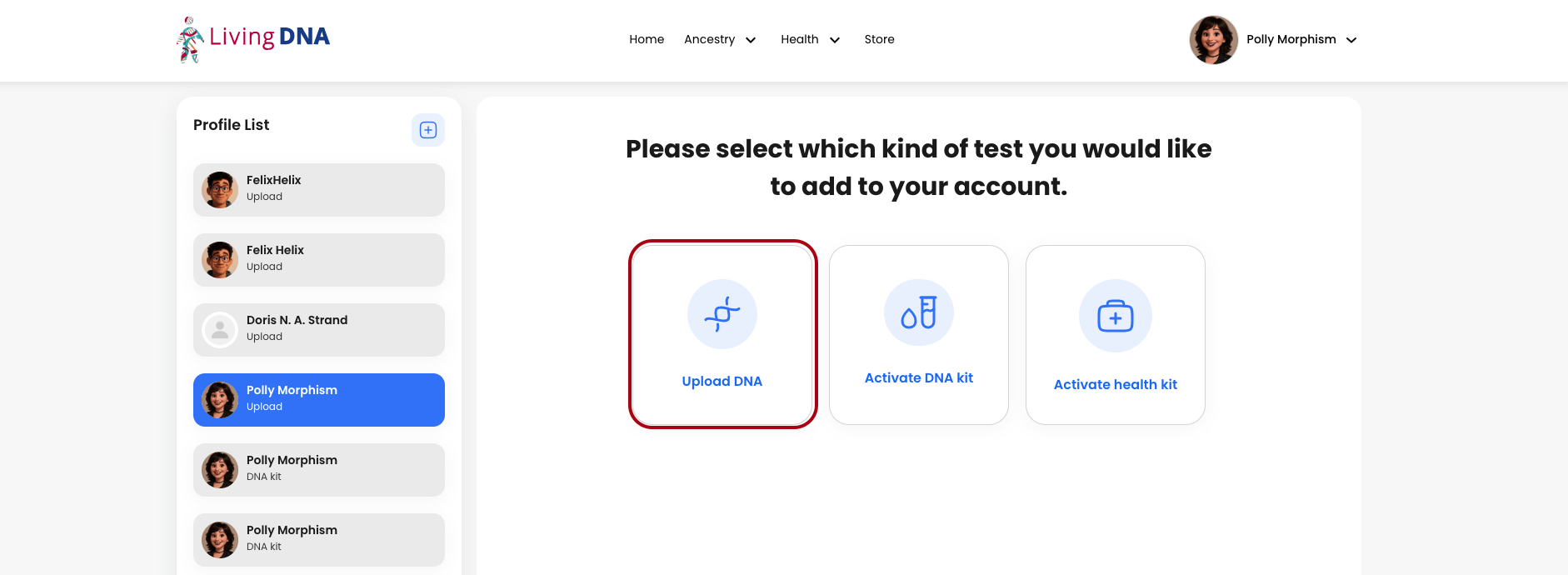
If you already have a Living DNA account, click “Add another profile,” which is in the profile section of your dashboard page. You’ll then select “Upload DNA.”
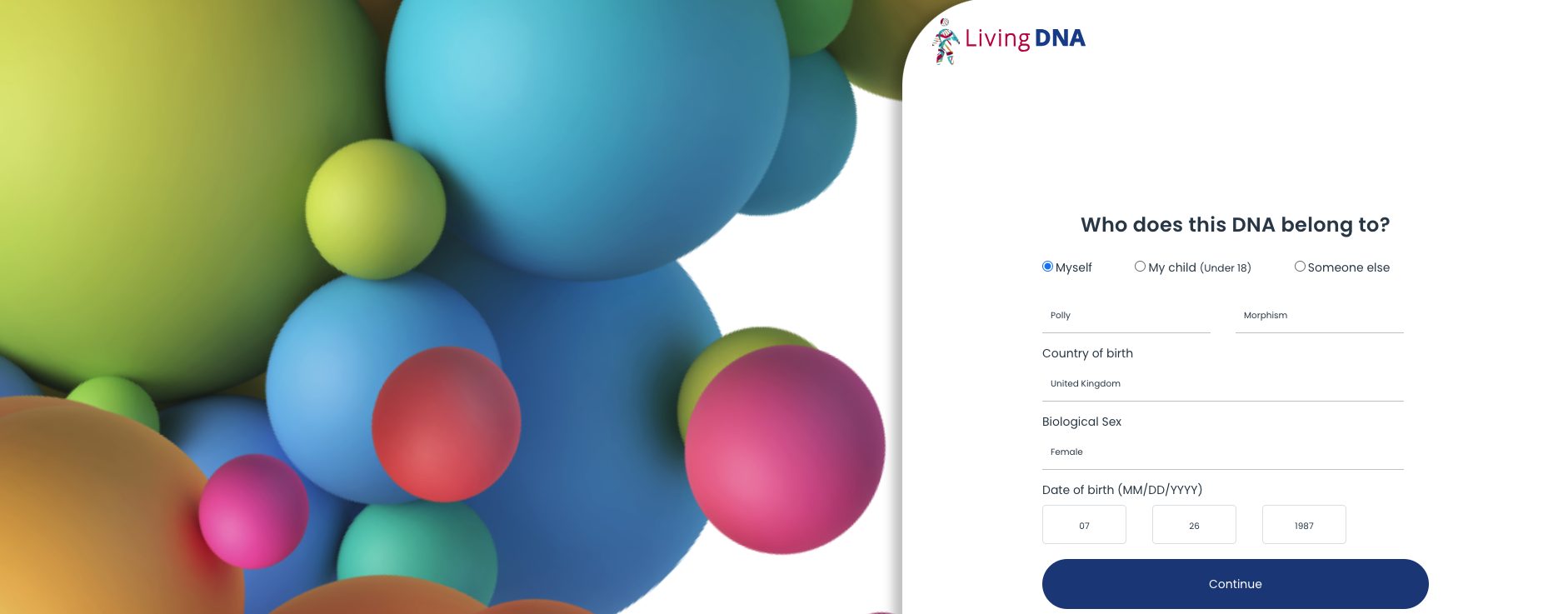
3. Complete the form with information about the person whose DNA you are uploading, including their name, country of birth and date of birth. Once finished, click “Continue.”
4. Upload your DNA file. You can either click “Browse” to find the file on your device, or you can drag and drop the file in to the box.
Note: The DNA file must be Autosomal Build 37, and must be a .txt, .csv, .zip, or .gz file.
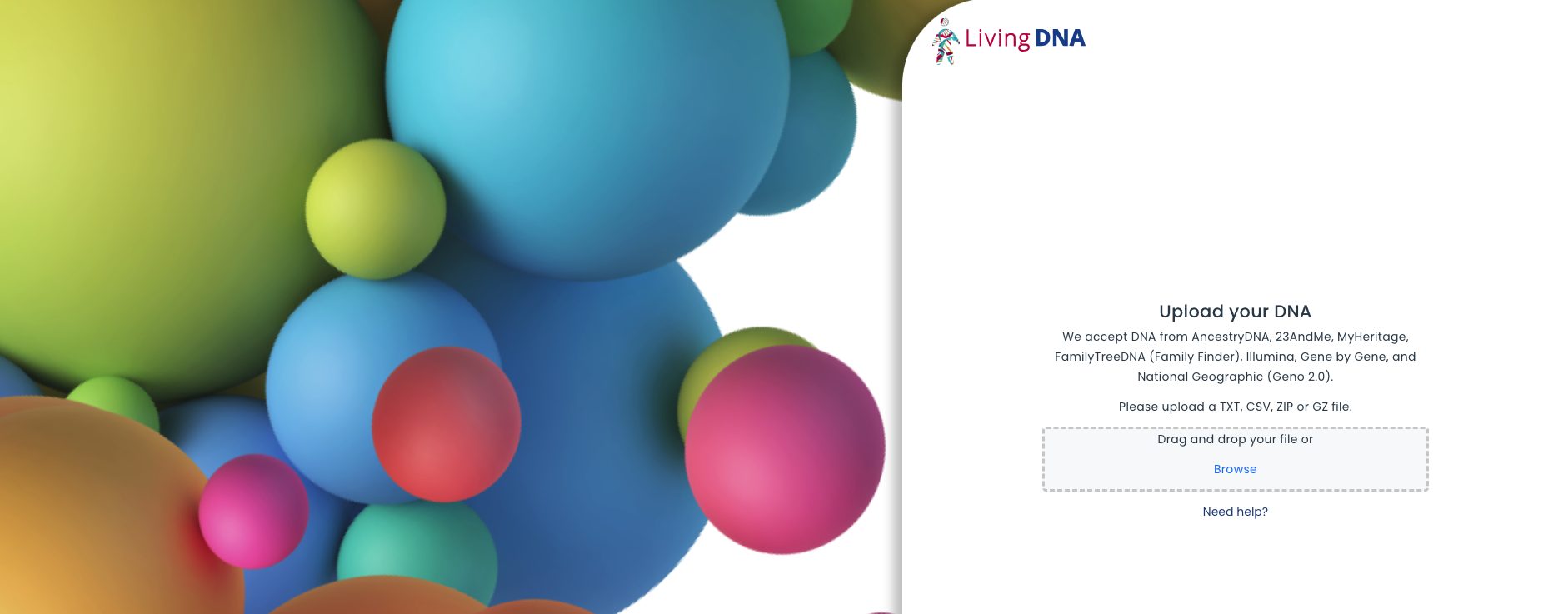
5. Wait while the file is processed. This could take up to 48 hours.
6. You will get a confirmation message that the file was successfully uploaded.
If you want some help utilizing the bells and whistles at Living DNA, consider purchasing a Your DNA Guide Coaching session. We sit down with you on a one on one basis and go over any questions you may have!